
New-user setup
From your first hub to your first tap.
Before you begin
- A Google account and a modern browser.
- A working Home Assistant installation for each location.
- A publicly reachable HTTPS address and a long-lived access token.
- Connected devices already working in Home Assistant.
Hearthlight is free. Hardware, device purchases and optional remote-access subscriptions are separate.
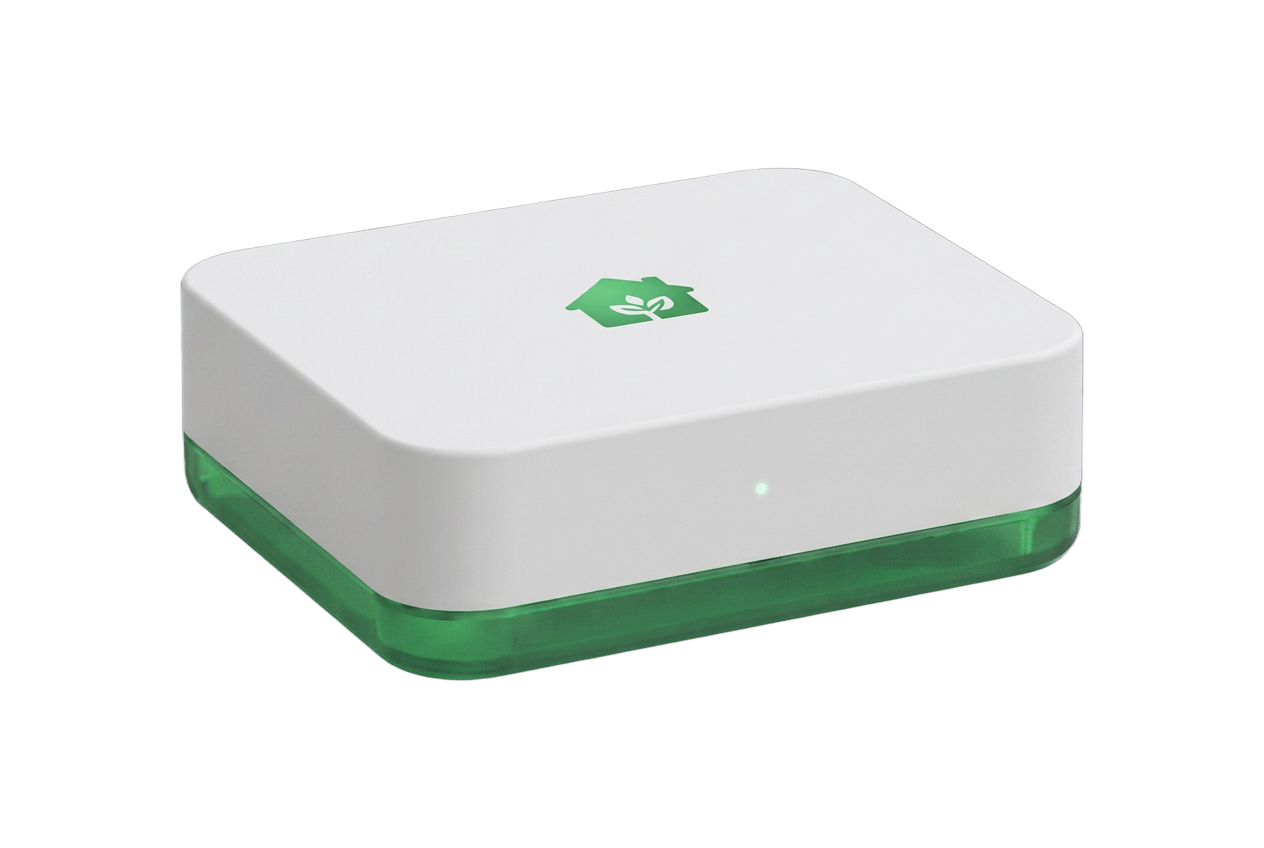 Explore Home Assistant Green ↗
Optional: bring your own AI
In dashboard Settings → Personal AI accounts, connect your Claude API key and Deepgram speech-to-text key. The dashboard stays free; provider usage is billed to your own accounts. Deepgram handles Hold to Talk listening only, not spoken replies or Hey Home.
Provider setup and privacySet up Home Assistant
For a new location, Home Assistant Green is a straightforward option with Home Assistant OS already installed. Plug it into your router with Ethernet, connect power and allow it to start.
From a device on the same network, open http://homeassistant.local:8123. Follow onboarding to create your Home Assistant owner account, or restore a backup. If that address does not resolve, use the hub’s local IP address from your router.
Already using Home Assistant? Keep your existing supported installation — you do not need to buy a Green just to use Hearthlight.
Official onboarding instructionsAdd your devices and areas
In Home Assistant, go to Settings → Devices & services. Add the integrations for your lights, thermostats, locks and cameras, following each integration’s instructions.
Assign lights and thermostats to named areas such as Living Room or Reception. Check that the devices respond inside Home Assistant before connecting Hearthlight. Create any scenes you want to use there, too.
Compatibility depends on your devices and their Home Assistant integrations. Some protocols, including Zigbee, require a compatible radio adapter; Green alone does not include every radio.
Adding Home Assistant integrationsEnable a secure, reachable address
Hearthlight connects from its server, not from your home Wi-Fi. It needs a publicly reachable HTTPS address for your Home Assistant installation.
Home Assistant Cloud by Nabu Casa is an optional, paid way to enable secure remote access without router port forwarding. Enable remote access in Home Assistant and copy the generated HTTPS remote URL. Alternatively, use an appropriately secured public HTTPS deployment following the official guidance.
A local address such as homeassistant.local, a private IP address, or a VPN-only URL will not work with Hearthlight’s hosted connection. Do not expose an unsecured HTTP service or disable security to connect.
Home Assistant Cloud·Securing your installationCreate a Home Assistant access token
Open your user profile → Security → Long-lived access tokens in Home Assistant. Choose Create token, give it a recognizable name such as Hearthlight and copy the generated token immediately.
Treat this token like a password: it grants access with that Home Assistant user’s permissions. Do not post it, email it or include it in screenshots. Keep it in a password manager until you add your location.
Hearthlight checks the token when you save a connection and does not display it back to you. If a token is lost or exposed, revoke it in Home Assistant and create a new one.
Home Assistant account and token securityCreate your free Hearthlight account
Choose Sign in with Google on this website and select your Google account. There is no separate Hearthlight password or owner approval.
After sign-in, your own dashboard opens. A new account starts with connection setup and no connected devices — the images on this website are a concept preview, not a shared dashboard.
Create your accountConnect your first location
Use the connection form on your new dashboard. For additional locations, open Settings → Add location.
- Name: choose a name such as Home or Office.
- Home Assistant address: paste the public HTTPS base address from step 3, not the local address or a page ending in /lovelace.
- Access token: paste the long-lived token from step 4.
Save the location. Hearthlight checks the connection before saving it. Your connected lights, thermostats, scenes and supported devices can then appear on your dashboard.
Test a light or thermostat change and confirm its state in Home Assistant. If you add another physical location, connect that location’s own installation. You can rename, reconnect or remove locations in Settings.
Make it yours
Allow location access if you want more accurate local weather. Tap the temperature for the forecast; use All in the lights section to find off lights.
Allow microphone access to try Hold to Talk on a supported browser. Enable Hey Home only when you want wake listening for the current open session.
For a wall tablet, enable wall mode from the dashboard or Settings. For quick access on a phone or tablet, add Hearthlight to your home screen using your browser’s install or share menu.
Check your Home Assistant timezone before saving scheduled routines, then review and test them in Home Assistant.
Something not connecting?
Find answers about accounts, devices, tokens and remote access.